Install & get started
A 5-minute path from download to your first scheduled upload.
1. Download Rollout
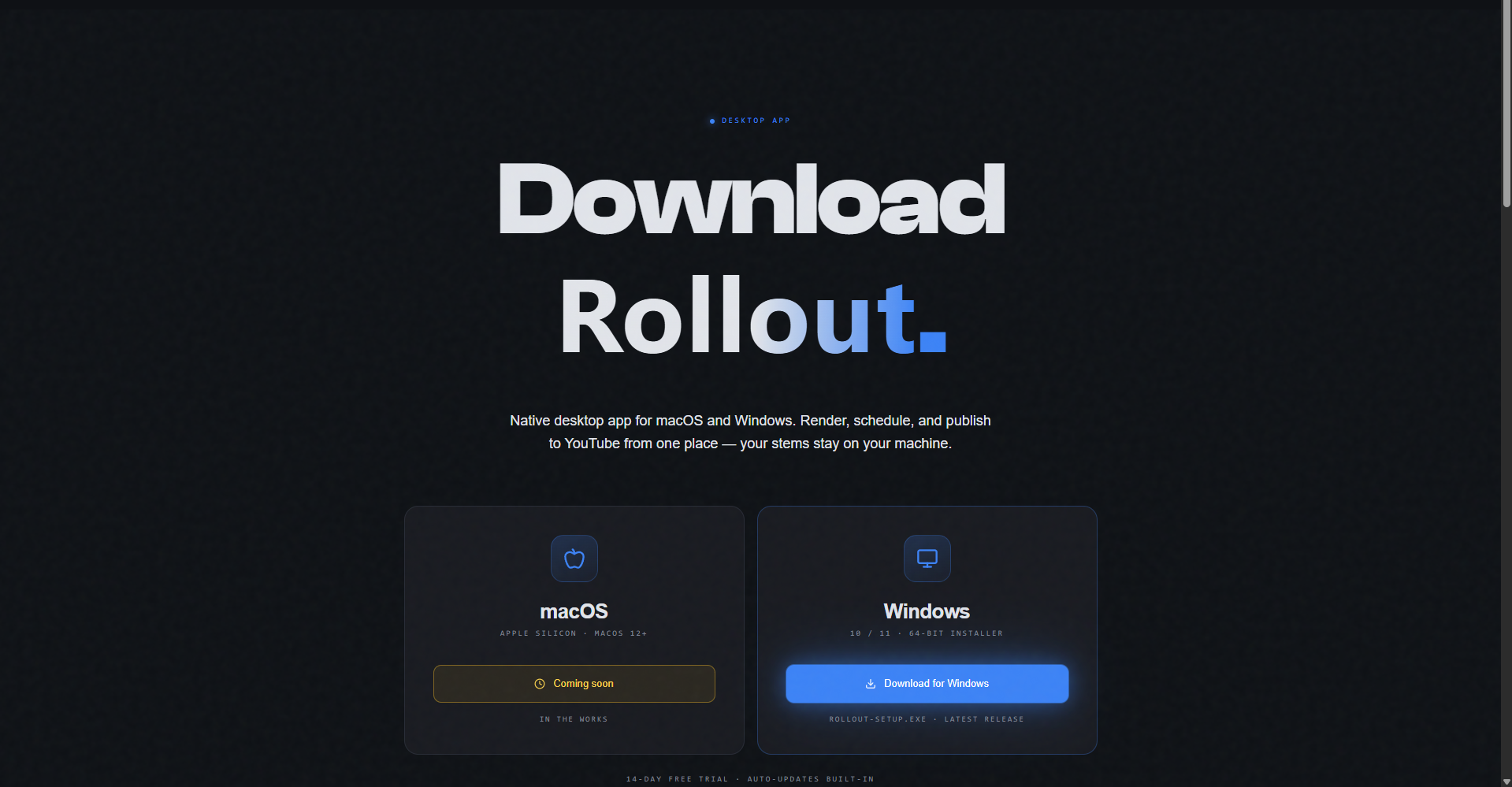
Head to the download page and click Download for Windows. You'll get a single file:
- Rollout-Setup.exe — around 220 MB. This is the installer; you only download it once. Future updates ship in the background as small differential patches.
A macOS build (Apple Silicon, .dmg) is on the way. Until then, the download page lists it as coming soon and you can leave your email on the contact page if you'd like a ping when it's ready.
2. Install on Windows
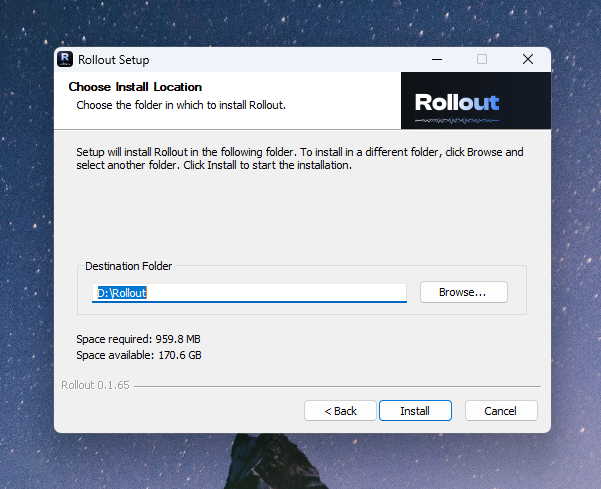
- Open your Downloads folder and double-click Rollout-Setup.exe.
- The installer wizard opens directly. Rollout-Setup.exe is code-signed, so Windows recognizes the publisher and no security warning appears.
- In the wizard, pick where Rollout should live (the default is fine for most people) and click Install.
- When the wizard finishes, leave Run Rollout checked and click Finish. The app opens and creates a Start menu + desktop shortcut.
3. Signed & verified
Rollout-Setup.exe is code-signed with a certificate issued to Andrei-Florin Drexler so Windows recognizes the publisher and installs the app cleanly. No security warnings, no bypass steps.
The User Account Control (UAC) prompt that appears when the installer starts is normal — it's Windows asking for permission to install any app, and the publisher name shown there is the signed identity above.
4. First launch & sign-in
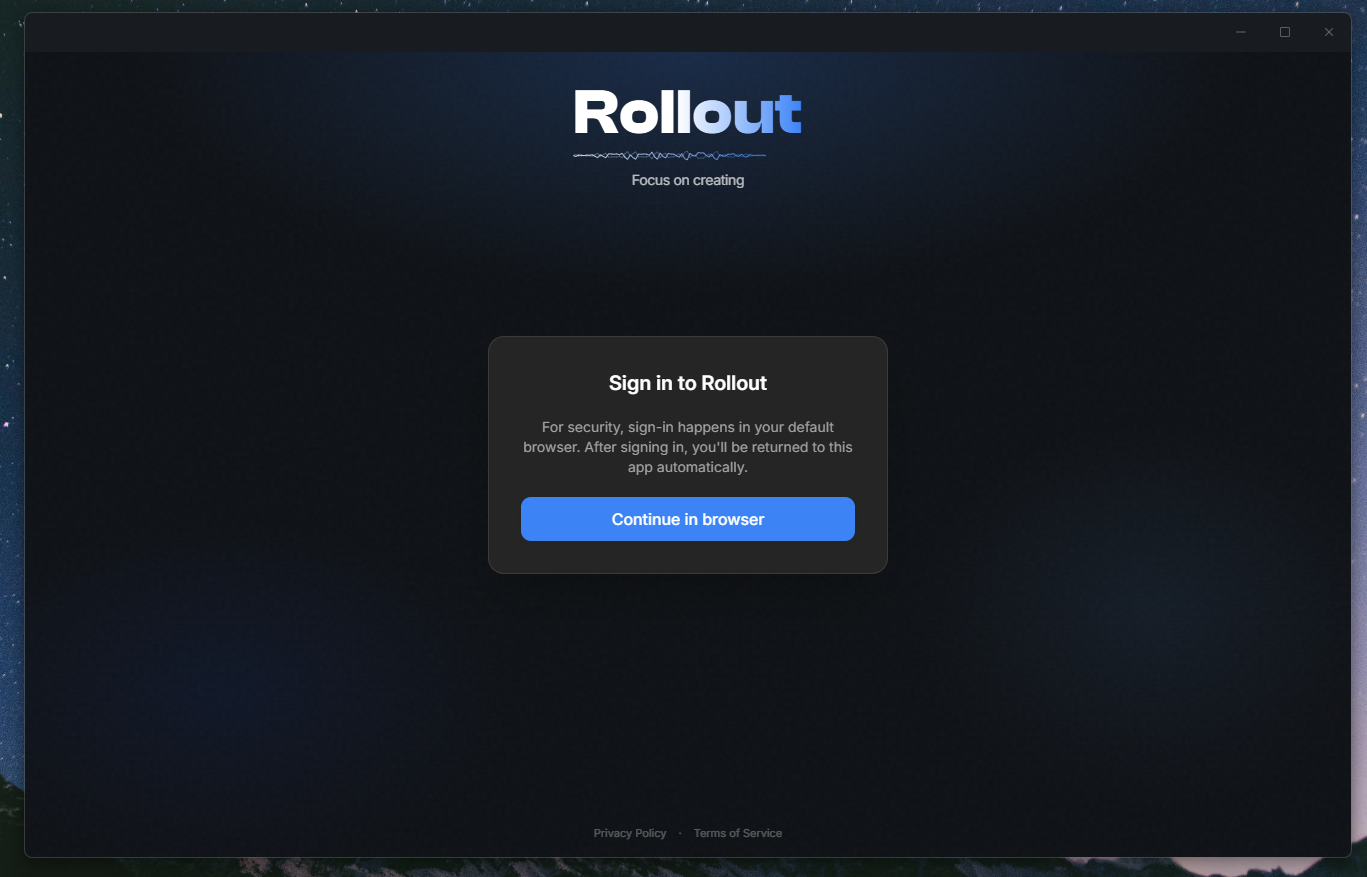
When Rollout opens for the first time, it lands on a card titled “Sign in to Rollout” with a single button.
- Click Continue in browser. Your default browser opens to getrollout.app/sign-in. . The app card shows “Opening browser…” while it waits.
- Sign in with Google (one click) or with an email + password if you already created an account on the website.
- After sign-in, your browser will ask “Open Rollout?” — click Open Rollout. The desktop app finishes the sign-in automatically and lands you on the dashboard.
Why a browser? Sign-in lives in your real browser so password managers, two-factor codes, and your existing Google session all work the way you expect. The desktop app never sees your password.
5. Your first 10 minutes
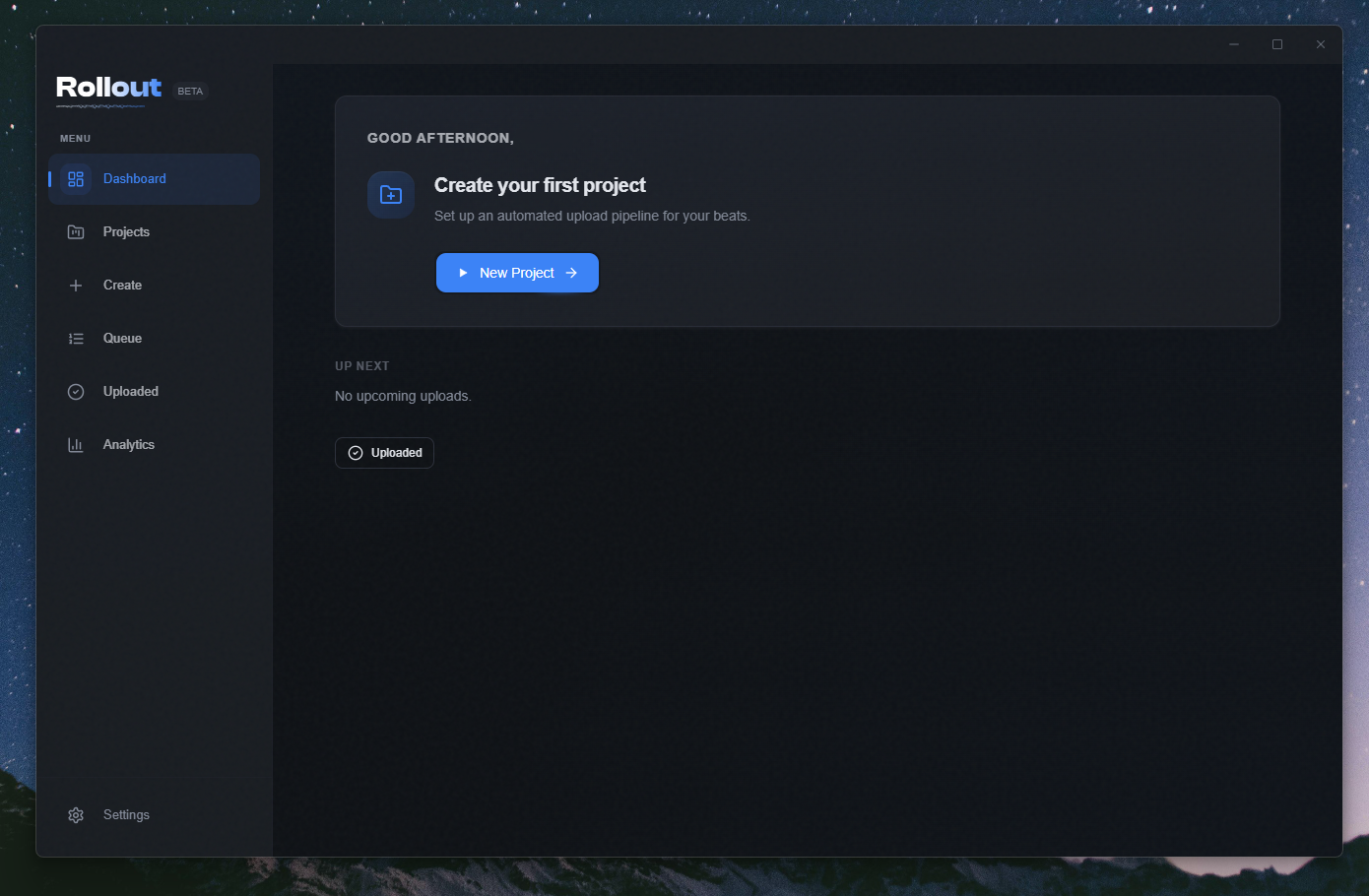
You land on the dashboard. Here's the shortest path to a published video — five steps, in order.
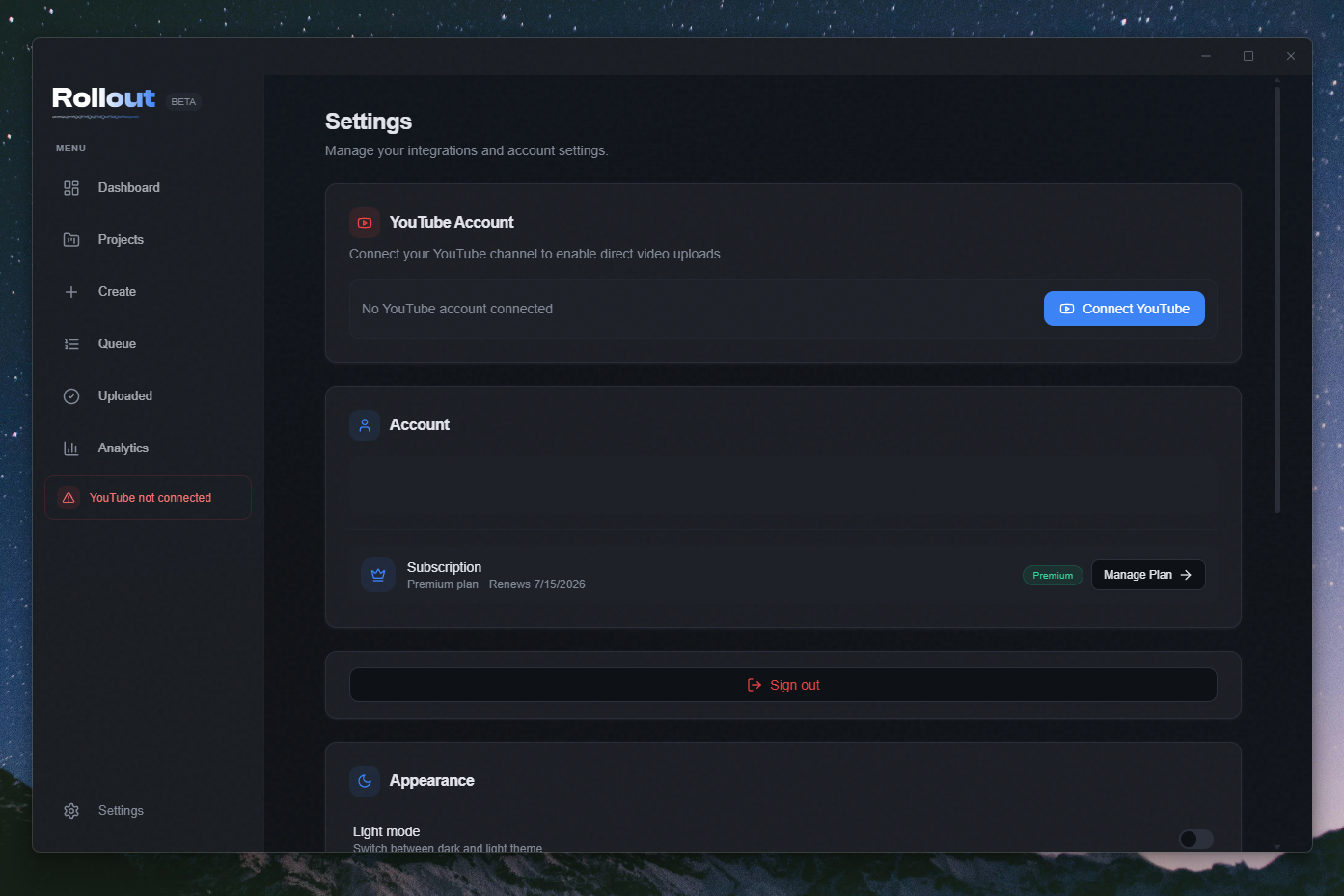
Connect your YouTube channel
Open Settings from the sidebar, scroll to the YouTube section, and click Connect YouTube. Your browser opens a Google consent screen — approve the scopes (upload + read channel info) and you'll be bounced back to the app with the channel name shown.
Create your first project
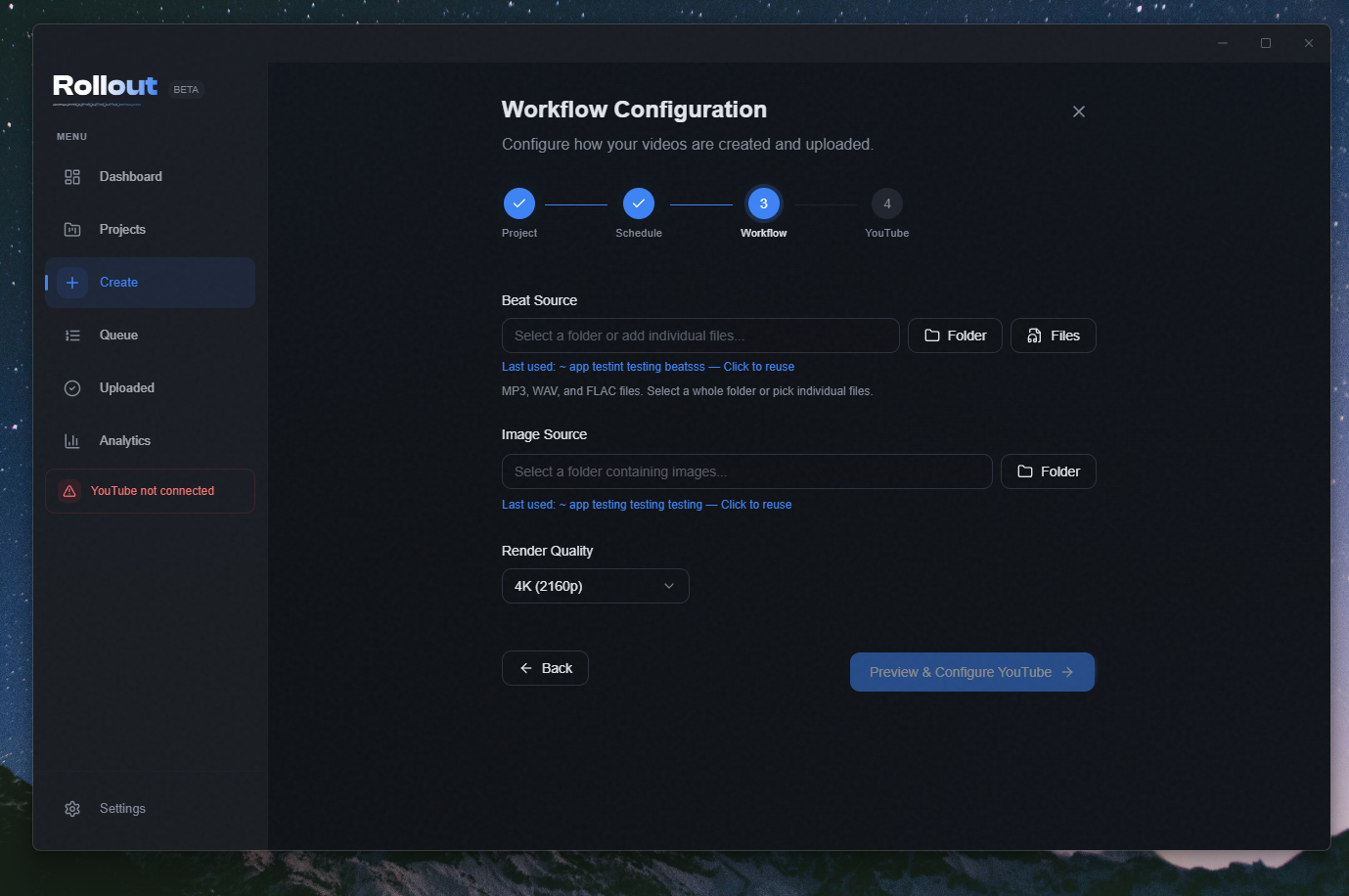
Click Create in the sidebar. The wizard walks you through four steps:
- Name the project (e.g. “Type beats — June”).
- Workflow — pick the source folder for your MP3s and the folder of cover images. Rollout watches these folders so dropping new files in queues them up.
- Preview — confirm font, layout, and overlay text. The thumbnail you see here is what the rendered MP4 will look like.
- Schedule — pick a cadence (e.g. one upload a day at 4 pm) or hit Publish Now for the first one.
Watch it render
Open Queue from the sidebar. You'll see rows for each upload: a progress bar fills as ffmpeg encodes the video, then the row flips to Uploading, then Scheduled or Published. Rendering happens locally on your machine, so your stems never leave.
Check the dashboard
Back on the dashboard, the next scheduled upload shows up with countdown, thumbnail, and a quick “Publish now” shortcut. This is the screen you'll live on day-to-day.
6. Troubleshooting
Antivirus quarantined the installer
Rare, but a small number of antivirus products still flag brand-new signed installers on ML heuristics alone. Restore the file from quarantine and add an exception for Rollout-Setup.exe and the install folder (default: %LocalAppData%\Programs\Rollout). If your AV won't let you, email us — we can send a hash you can verify against.
The app installs but shows a blank screen on launch
Fully quit Rollout (right-click the tray icon → Quit) and reopen it. If the blank screen sticks, send us a bug report from Settings → Bug report (it auto-attaches a redacted log bundle, no copy-paste required).
I sign in and the app sends me back to sign-in
That usually means the rollout:// handoff didn't reach the app — common right after install, before Windows has registered the protocol. Fully quit Rollout, reopen it, and try sign-in once more. If it loops again, restart Windows so the protocol registration takes effect.
I'm on macOS
The macOS build isn't shipping yet (it's in the works for Q3 2026). When it does ship, you'll see a Gatekeeper prompt the first time — “Rollout can't be opened because Apple cannot check it for malicious software.” The bypass is: right-click Rollout.app in Applications and choose Open, then click Open in the dialog. Or use System Settings → Privacy & Security → Open Anyway. The macOS build isn't notarized yet — that's on the roadmap. The Windows build is code-signed and installs cleanly.
7. Where to get help
Three places, in order of speed:
- In-app bug report — Settings → Bug report. Fastest for anything that's broken or weird, because logs come with the report.
- Email — support@getrollout.app. Usually a same-business-day reply, written by a human.
- Discord — the Rollout community server. Other producers, workflow tips, and the fastest channel for quick questions.
For everything else — billing, partnerships, press — the contact page has the right address.